

Start: InboxAssure Onboarding
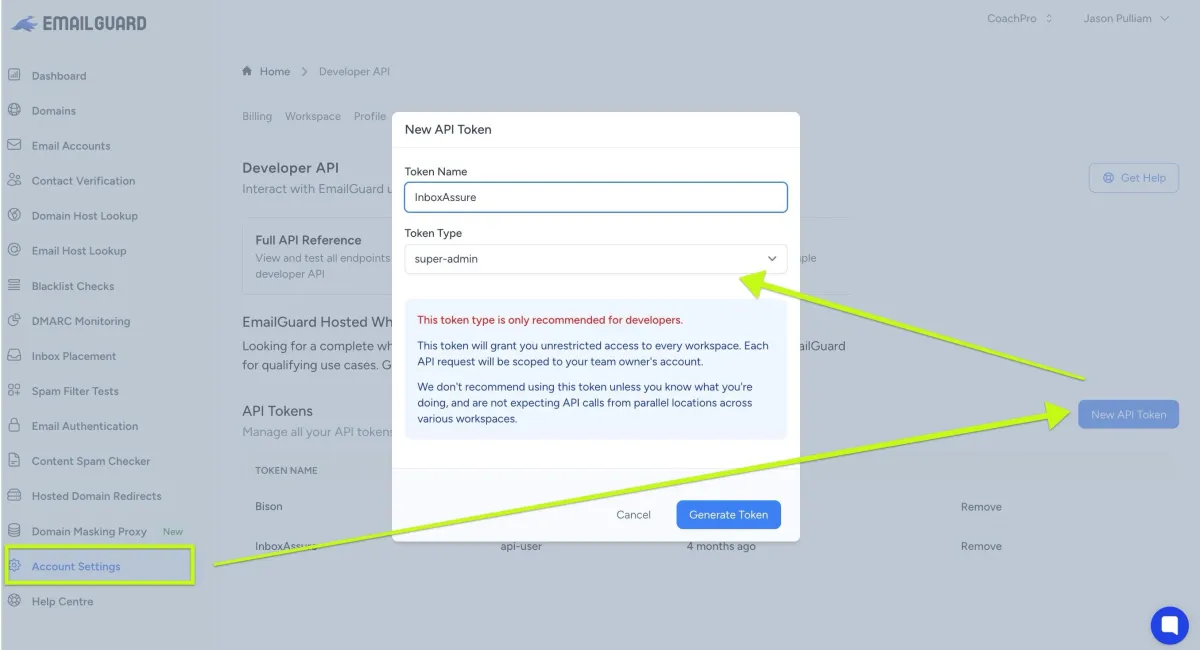
Step 1: Collect Your EmailGuard API Key
Account Settings -> New API Token -> Token Name (InboxAssure) -> Token Type (super-admin)
Let's get started. (or send this page to your tech)
Next Steps Overview:
⌛ Collect your EmailGuard and EmailBison API keys
⌛ Fill out Onboarding form on this page
⌛Tag your inboxes by provider name
⌛ Optional: add [email protected] and [email protected] to your EmailBison as users if we are doing your setup.
Step 2: Collect Your EmailBison API Key
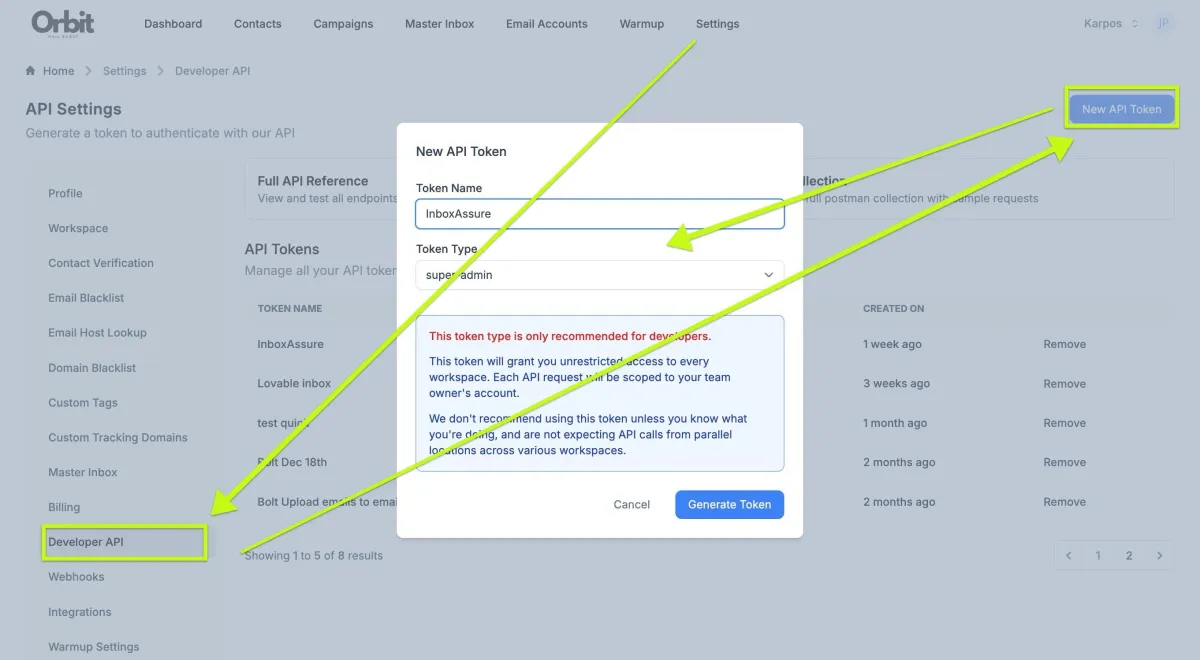
Account Settings -> New API Token -> Token Name (InboxAssure) -> Token Type (super-admin)
InboxAssure Onboarding Form
Find your EmailGuard API key here
https://app.emailguard.io/api-settings (choose 'super-admin' for user type)
Find your EmailBison API key
https://app.yourwebsite.com/settings/api (choose 'super-admin' for user type)
How Many EmailGuard Credits Will I Need?
How To Tag Your Email Providers
In oder for us to provide you stats about your various email providers we need to know the name of each provider. You can name it however you like, we suggest the name of the provider + the date. Use the letter 'p' and '.' in front of any email inbox. Watch the video below
How To Add Your EmailBison Sub Accounts to InboxAssure
Visit: https://app.inboxassure.app/
Go to the settings -> intergrations
Use your existing EmailBison API 'super-user' key
Type the name of the sub account you want to add
Submit
Repeat the process for each sub account you want to add